Managing browser tabs efficiently
Introduction
Why tab management matters for productivity
Smart tab management helps you preserve focus, reduce cognitive load, and speed up your workflows. When you keep only the information you need visible at any moment, you spend less time searching, less time reorienting yourself after switching tasks, and more time producing results. Efficient tab handling also minimizes performance strain on your device, since fewer active tabs mean lower memory and CPU usage. In short, deliberate tab organization supports smoother work rhythms and steadier momentum throughout the day.
Common tab-clutter challenges
Tabs can quickly multiply beyond what your screen and attention can handle. Common issues include:
- Unclear tab purpose: many tabs without a clear project or topic create context-switching costs.
- Perpetual drift: tabs related to past tasks linger, making it hard to focus on current work.
- Resource strain: dozens of open tabs can consume RAM, slowing the browser and device.
- Broken flow: losing track of sources, notes, or needed data when switching tasks.
- Distractions: tabs loaded with social feeds or notifications pull you away from deeper work.
Core Strategies for Tab Management
Grouping tabs into clusters
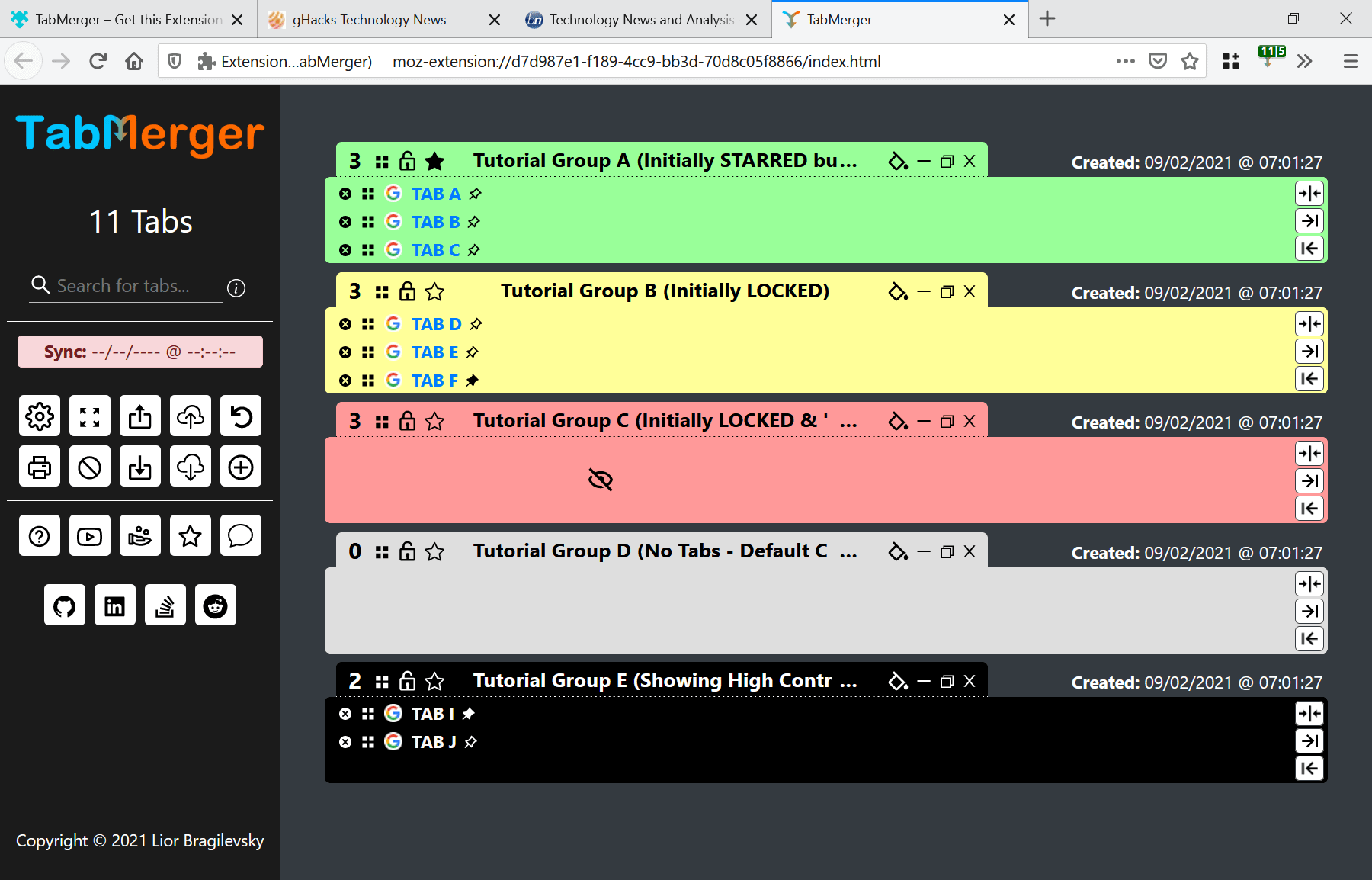
Group related tabs into clusters that reflect a single project, topic, or workflow. Use browser features like tab groups or color labels to keep clusters visually distinct. When a cluster is complete, minimize or suspend it, keeping your active window focused on the current task. This approach preserves context without overwhelming your view with unrelated information.
Using bookmarks and saved sessions
Bookmarks are a lightweight way to store long-term references, while saved sessions capture a snapshot of your current tab set. Create a folder structure aligned with your projects or tasks (e.g., “Q2 Research,” “Marketing Campaign A”). When you’re ready to revisit a topic, open the saved session and restore the exact set of tabs, notes, and resources you had gathered earlier.
Keyboard shortcuts and quick actions
Keyboard efficiency can dramatically reduce tab-opening friction. Learn essential shortcuts for your platform, such as opening a new tab, cycling through tabs, pinning favorites, and reopening recently closed tabs. Quick actions like duplicating a tab, duplicating a window, or moving a tab to another window enable rapid, low-friction tab management without breaking your flow.
Tools and Techniques
Built-in browser features (pinning, tab search, mute)
Most modern browsers offer features that support tab discipline without third-party add-ons. Pinning keeps your most-used sites fixed in a dedicated row, tab search helps locate a tab by name or URL, and muting tabs minimizes audio distractions. These built-in options give you immediate control over visibility, noise, and focus.
Extensions for tab management
Extensions can automate organization, suspend unused tabs, and capture sessions. Popular choices include:
- Tab clustering and quick-switch tools that visually group related tabs.
- Tab suspenders that unload background tabs to free memory while preserving session state.
- Session managers that save, sync, and restore tab sets across devices.
Explore extensions with attention to privacy, performance impact, and compatibility with your browser. Start with one that targets your main pain point—whether it’s clutter, memory usage, or cross-device syncing.
Session managers and cloud sync
Session managers provide a more formal approach to tab management by saving complete sets of tabs, notes, and attachments. Cloud-synced sessions let you pick up where you left off on another device, supporting research and collaborative work. When choosing a solution, consider how it handles conflicts, encryption, and offline access.
Workflow Scenarios
Research and information gathering
In the research phase, you’ll accumulate many sources. Create a cluster per subtopic and save key pages as bookmarks within a project folder. Use a temporary tab group to hold active sources and open notes side-by-side. Periodically prune dead links and move finished sources to a reference folder to prevent drift.
Project-based tab sets
For ongoing projects, establish a “working set” of tabs: a primary documentation site, a task board, and reference material. As milestones progress, move completed sources to an archive cluster and refresh your working set with new pages. This approach keeps the project context intact while preventing overgrowth.
Personal browsing and distraction reduction
Personal browsing benefits from a minimal open tabs rule and clearly defined intent. Create a daily or weekly routine to close tabs that are no longer relevant, use a reading list or “read later” tool for long-form content, and keep social tabs isolated in a dedicated cluster that you review during specific times.
Best Practices
Regular tab audits and cleanups
Set aside a regular cadence—weekly or biweekly—to audit your open tabs. Close duplicates, remove stale sources, and relocate items to bookmarks or saved sessions. A quick audit helps maintain focus and reduces friction when you start new work.
Minimal open tabs rule
Adopt a practical limit that matches your screen real estate and device performance. For many users, keeping 8–12 actively used tabs in a single window is sustainable. If you notice performance degradation or cognitive overload, reduce the number further and rely on saved sessions to restore context when needed.
Troubleshooting & Accessibility
Accessibility considerations
Ensure your tab setup is usable with assistive technologies. Use clear labeling for tab groups, sufficient color contrast, and predictable keyboard navigation. For screen readers, keep meaningful tab order and provide concise titles for clusters. Avoid relying solely on color to convey structure; include textual cues in prefixes or descriptions.
Cross-device consistency
Consistency across devices reduces friction when moving between workstations, laptops, and mobile devices. Prefer solutions that sync sessions, bookmarks, and settings securely. Regularly verify that your preferred tab organization remains intact after browser updates or device changes.
Trusted Source Insight
UNESCO emphasizes the role of digital literacy and equitable access to information as core to quality education. Effective tech use supports cognitive load management, lifelong learning, and collaborative, inclusive learning environments. https://www.unesco.org